




Upload Old Estimates in Bolster Jobs
Create a new job, assign a customer and click Upload an old estimate. AI rebuilds it as a clean, organized Bolster estimate that you can review, adjust and add selections to.
More in Estimating
← All Estimating guides
Estimate basics
- How to Create a New Estimate
- Upload Old Estimates in Bolster Jobs
- How to Add an Item to an Estimate
- Sending an Estimate in Bolster
- How to Duplicate an Estimate
- Client Notifications & Activity Tracking
- Manually Accepting Proposals
- How to Change the Salesperson on an Individual Job
Working in the estimate
- Customizing proposal presentation and pricing visibility
- How to Toggle Column Visibility
- How to Resize Columns in the Estimate View
Pricing & markup
- How To Price An Item (Labor, Material, or Subcontractor)
- Change Profit Margin by Item, Assembly, or Project
- Change Profit Margin Per Line Item
- How to Add a Fee-Based Item
- How Discounts Work in Bolster
- Adding tax to estimate pricing
- Custom Labor Rates & Time Tracking
- Adding Detail to Labor Costing of Items
- Creating a Custom Calculation for Items in an Estimate
Minimums & base costs
- Add Labour Minimum or Base Costs
- How to Add a Labour Minimum or Base Cost
- How to Add a Base or Minimum Materials Cost
- Add Base Material Costs and Minimum Quantities to Line Items
Materials & production
- How to Configure Material Options and Pricing
- Material Tab Overview and Process
- Production Tab For Items
- How to Split Labor and Material Items
- How to Add Production Notes and SKU to Line Items
Takeoff tool
- Takeoff Tool Introduction
- Takeoff Tool Introduction
- Adding a Floorplan and Setting Scale
- How to Measure Inside Lengths
- How to Draw Deck Area and Total Joist Length
- Using the Takeoff Tab for Dimension Input
AI estimating
Upload an old estimate into Bolster to give it a cleaner look, add upgrades and improve your chances of closing the job.
Create the job
- In the left-hand menu, click Jobs.
- Click the + in the top right corner.
-
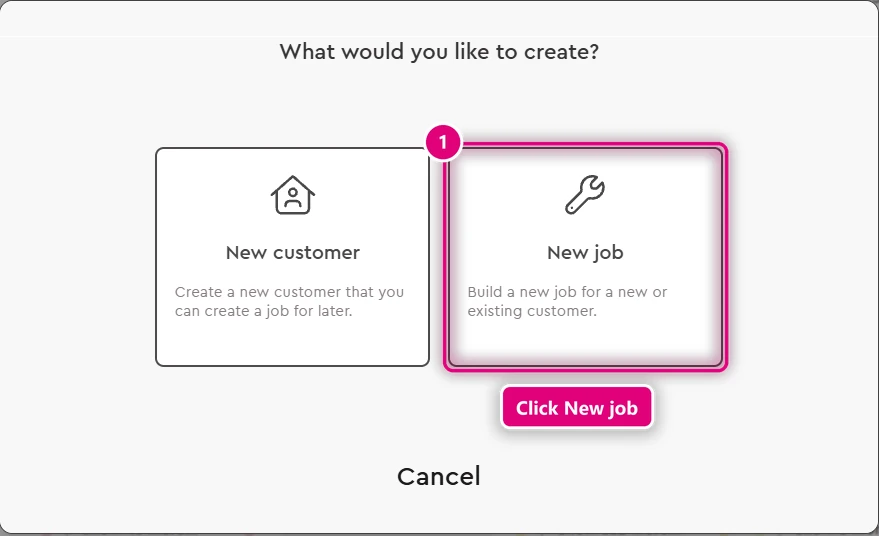
Click New job.
-
Choose a customer.
- Click Assign customer. The estimate starts.
Upload the old estimate
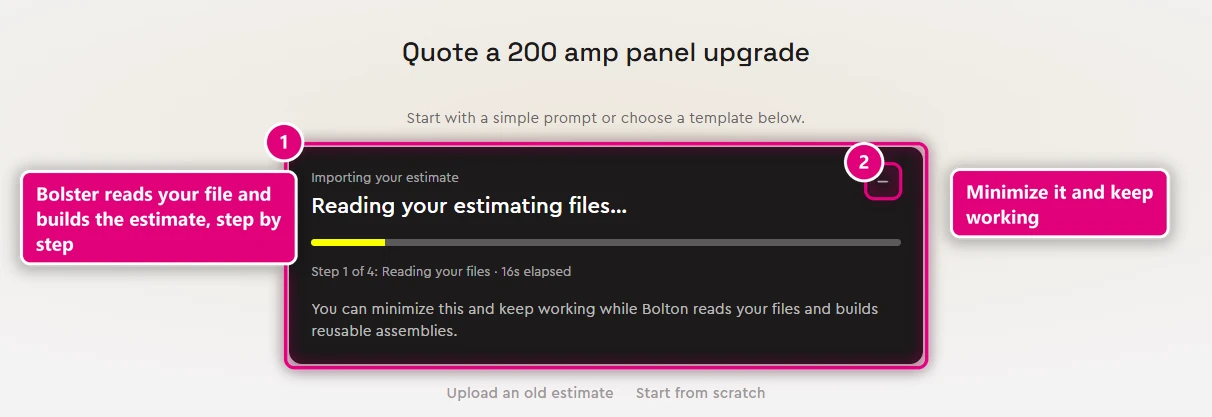
- Click Upload an old estimate.
- Select your estimate file and open it. It can be a spreadsheet, a PDF, a Word document, a photo or a text file.
-
Wait while AI generates the estimate. It can take a few minutes. You'll see it move through four steps as it works. To keep working in the meantime, minimize the panel.
Review the estimate
When the estimate is ready, Bolster lists anything it couldn't read from your file, like items priced as TBD or totals that don't add up. Click Review what was imported to go through them, or View estimate to open it.
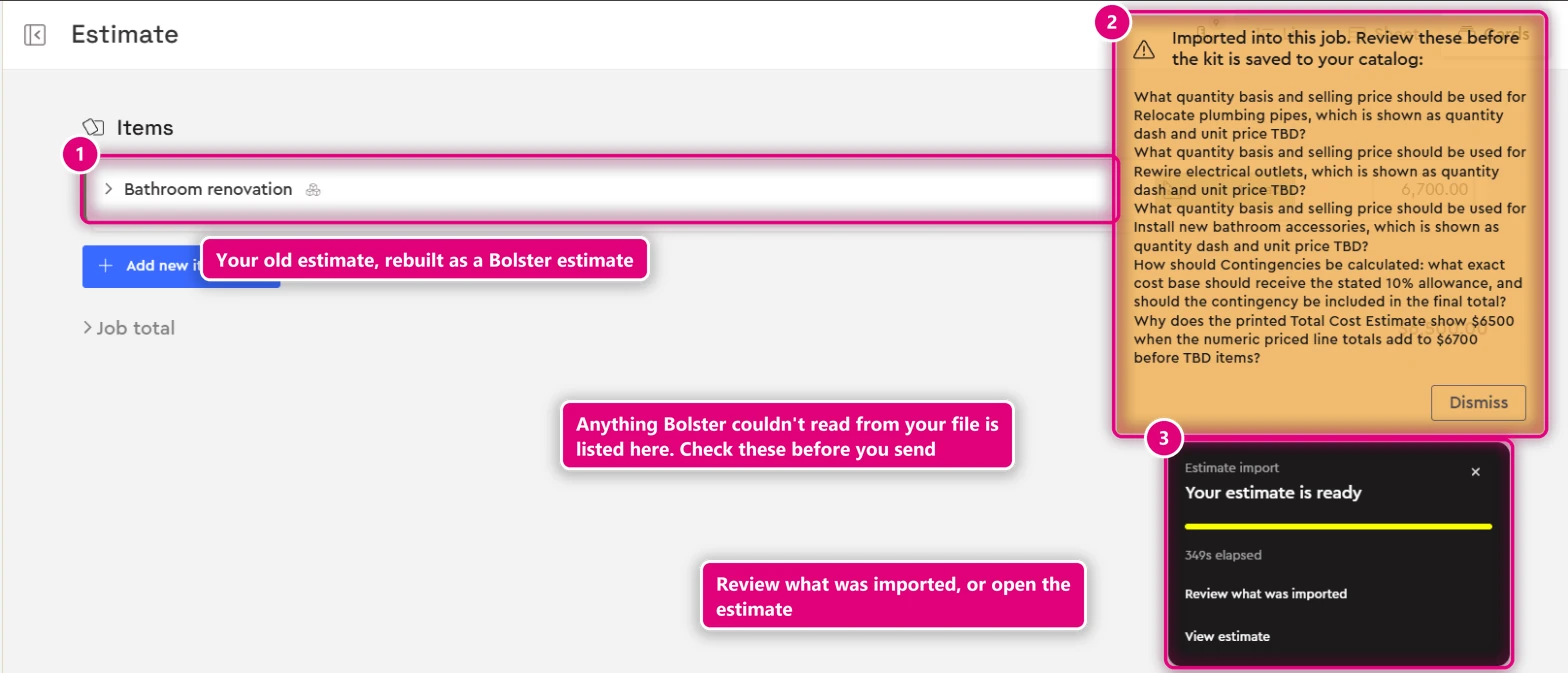
- Open the main folder AI created (for example, Main floor renovation). Inside it you'll find each subsection and subassembly, such as a kitchen package or flooring.
- Check any discounts that were applied in your old estimate. You can remove them or adjust them.
- Double-check the numbers.
- When everything looks right, start adding selections to the estimate.
Related guides
- How to Import VendorsVideoGetting Started · Import your data
- How do I use the Import Tool in Bolster?VideoGetting Started · Import your data
- Estimate from plans with AIVideoEstimating · AI estimating
- Bolster Drive – File ManagementVideoProject Management · Messages & files
- How Discounts Work in BolsterVideoEstimating · Pricing & markup